How to upgrade to the Crystal 2025 Viewer
Possible Crystal 2025 bug
There are reports from users of Crystal Reports 2025 that formatting formulas are being lost or ignored in some circumstances. Before updating reports to 64-bit, it may be worth installing the latest Crystal Reports patch:
Two runtime versions of the Crystal Reports Viewer are provided with EMu 10: Crystal 11.5 (32 bit) and Crystal 2025 (64 bit). To make use of the Crystal 2025 Viewer it is necessary to upgrade EMu’s existing 32 bit reports to 64 bit. EMu's default reports (those provided out-of-the-box by Axiell) have been upgraded and display in the latest Viewer; all other 32 bit reports will be viewed in the Crystal 11.5 Viewer until they are upgraded, a process outlined below. While it is not necessary to upgrade to the Crystal 2025 Viewer immediately, be aware that support for 32 bit libraries does have an end of life.
Note: Upgrading 32 bit reports to 64 bit reports requires access to a full version of Crystal Reports 2025.
What does an upgrade entail?
Typically, the upgrade is simple and straightforward (follow Steps 1 to 3 and then save the report at Step 7).
In some circumstances Crystal will identify a change of Type for a field saved to the original report and it will be necessary to resolve this mismatch as described below (additional Steps 4 to 6).
If the report contains OLE Objects for displaying images, these will also need to be updated to display correctly in Crystal 2025. This process is also detailed below.
Upgrade 32 bit to 64 bit
To upgrade a 32 bit Crystal Report to 64 bit:
- Download the report as described here.
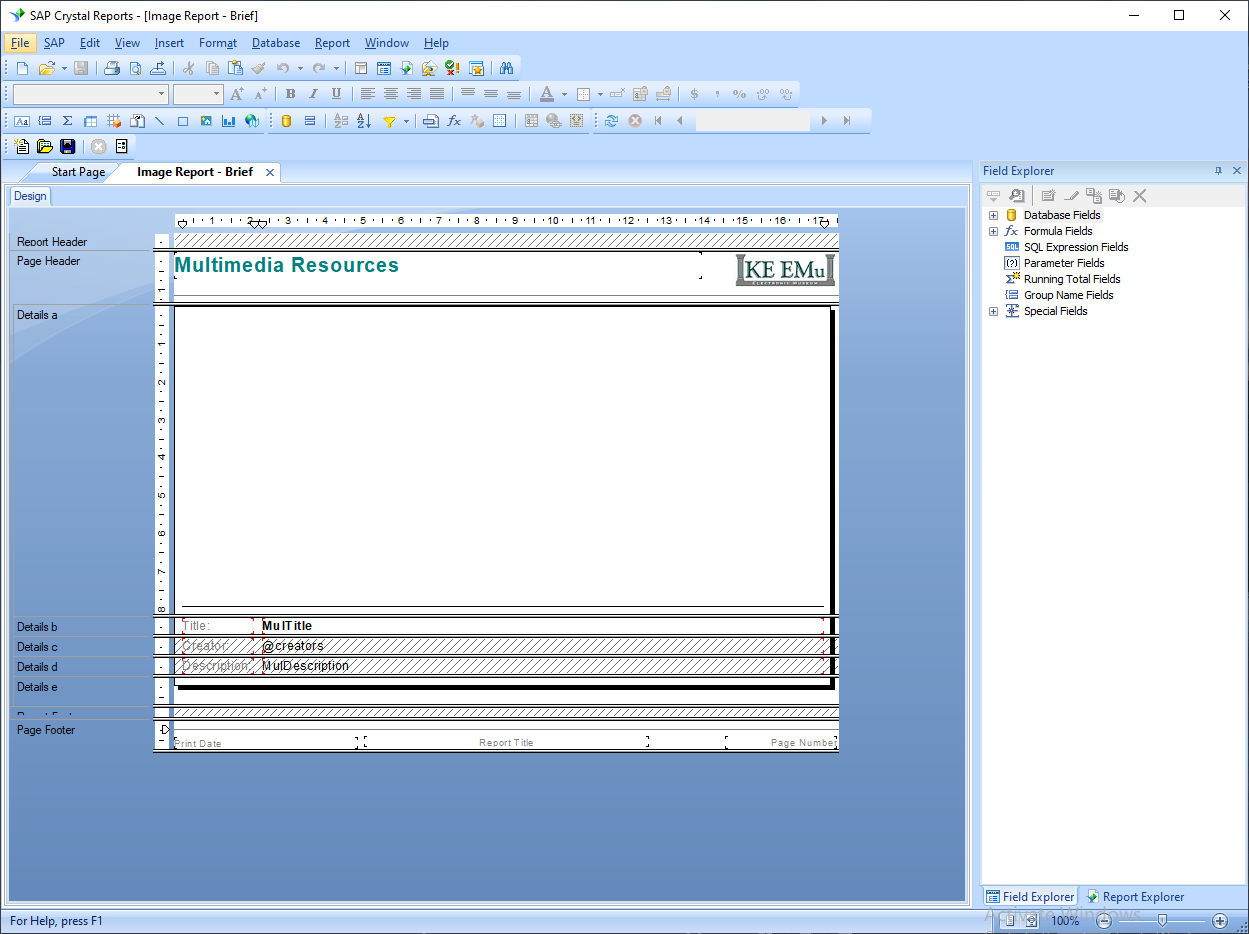
Crystal Reports will open and the report will display:
-
Select Database>Set Datasource Location from the Menu bar.
The Set Datasource Location box will display. Here we upgrade the report to use 64-bit ODBC data sources:
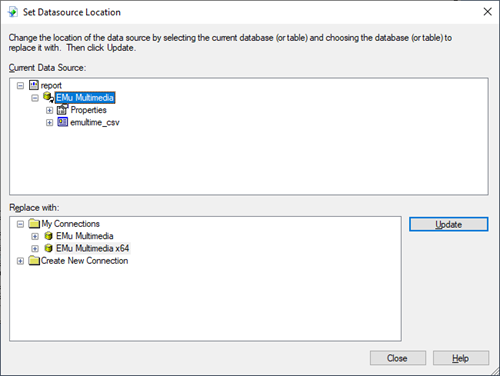
In this example, the current data source is
EMu Multimedia: this is a 32-bit data source. All 64-bit EMu Data sources have anx64suffix, e.g.:EMu Multimedia x64. -
Select EMu Multimedia x64 in the Replace with field, and then select Update:
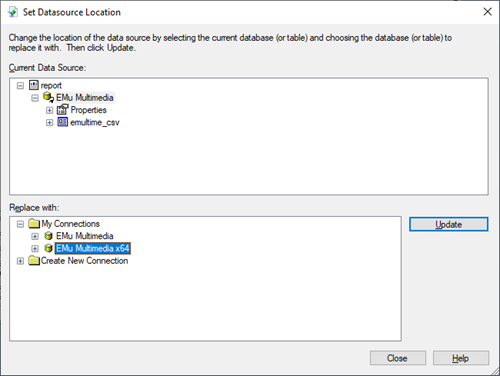
One of two results is possible:
- A message displays stating Data Source replaced:
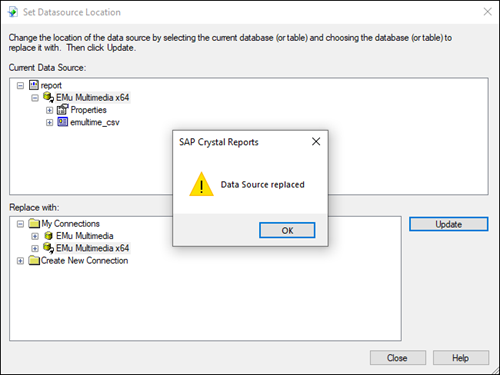
Select Ok, then Close and proceed to Step 7.
- If the Map Fields box displays, additional updates are required:
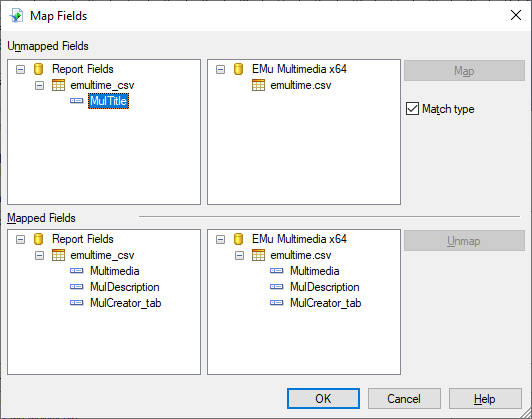
 Explanation
In Crystal 11.5 it is only possible to include an EMu Text field in a formula if it has a Type of
CHAR WIDTH 255(if the EMu Text field has been configured to have 255 characters or less, it is identified in Crystal as having a Type ofCHAR WIDTH 255and can then be included in a formula). In Crystal 2025, a formula can include an EMu Text field that has a Type ofCHAR WIDTH 255orLONGCHAR(in Crystal a Text field that has been configured to have more than 255 characters is identified as having a Type ofLONGCHAR).Prior to the introduction of extensible fields with EMu 9.0, the only way to store more data in a field that was configured to have a maximum of 255 characters was to change the field's configuration to allow more characters. If this happens, there are consequences when we attempt to upgrade the report in Crystal as Crystal identifies a change of Type for the field saved to the report from
CHAR WIDTH 255toLONGCHAR, and as a result of the mismatch, the Map Fields box displays: Crystal does not allow mapping between different Types and some steps are required to fix the report.
- A message displays stating Data Source replaced:
-
Select OK.
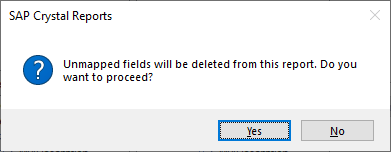
The following message displays:
-
Select Yes.
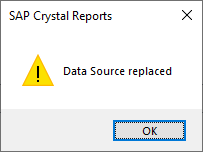
In this example the unmapped field is MulTitle and when Yes is selected the field is removed from the report and the following message displays:
-
Select OK, and then Close.
In our example, the report now appears as follows with the MulTitle field removed:
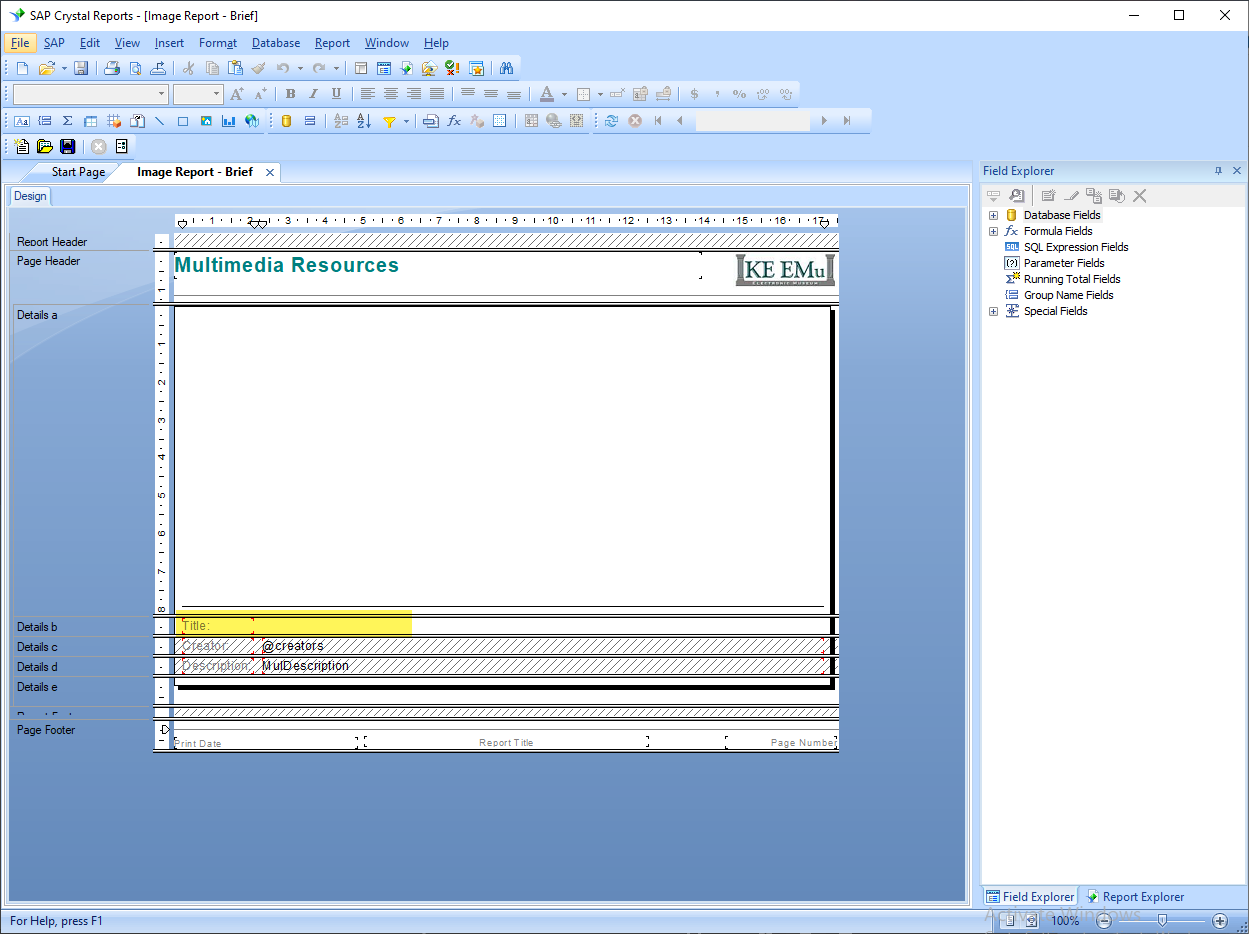
We need to add the field back into the report. This is done by selecting it from the database fields on the right and dragging it to the correct position on the report:
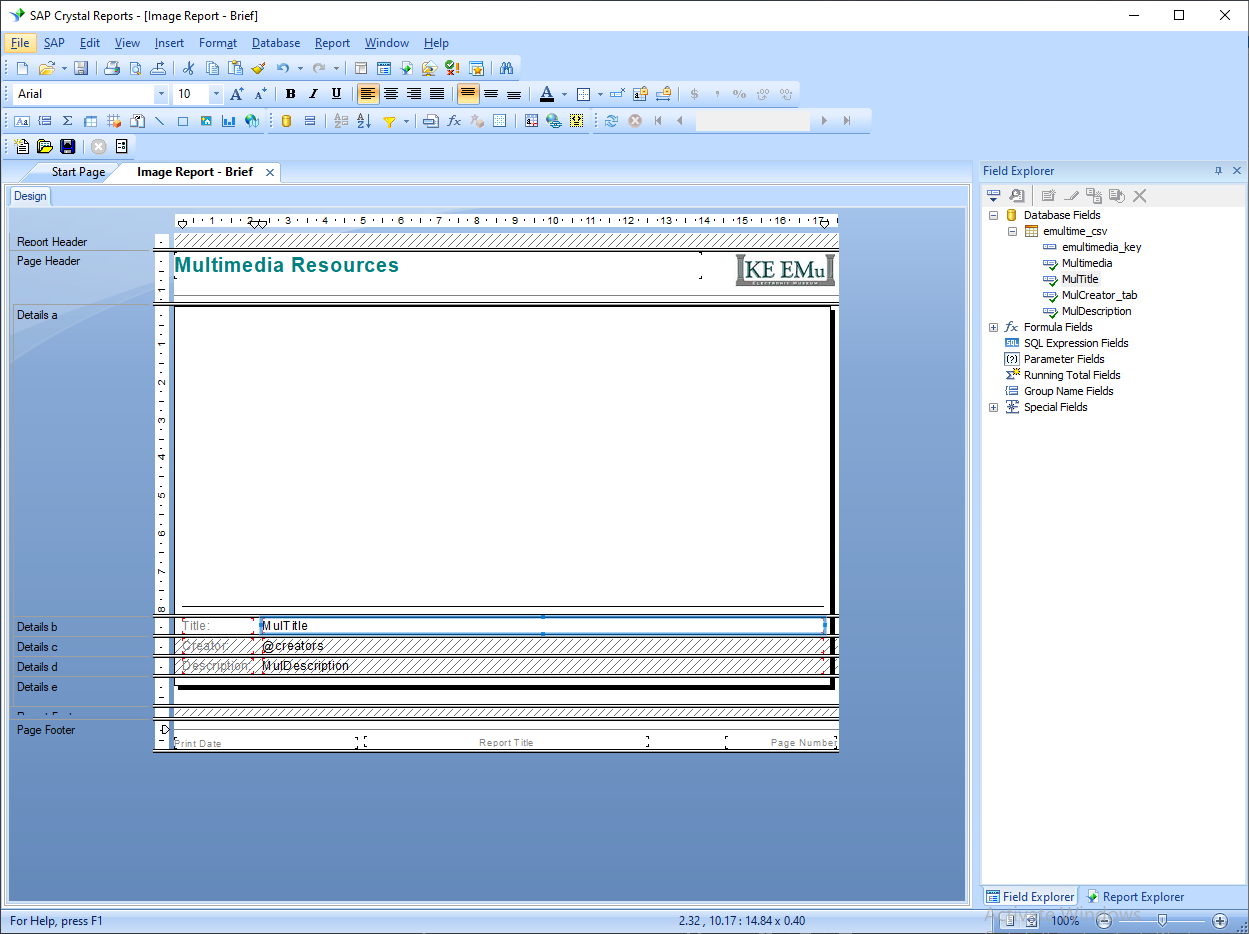
Tip: Details about adding fields to a report can be found here, and formatting fields here.
If the report contains OLE Objects for displaying images, these need to be updated to display correctly in Crystal 2025:
Updating OLE Objects
-
Right-click the OLE Object and select Format Graphic from the context menu that displays:
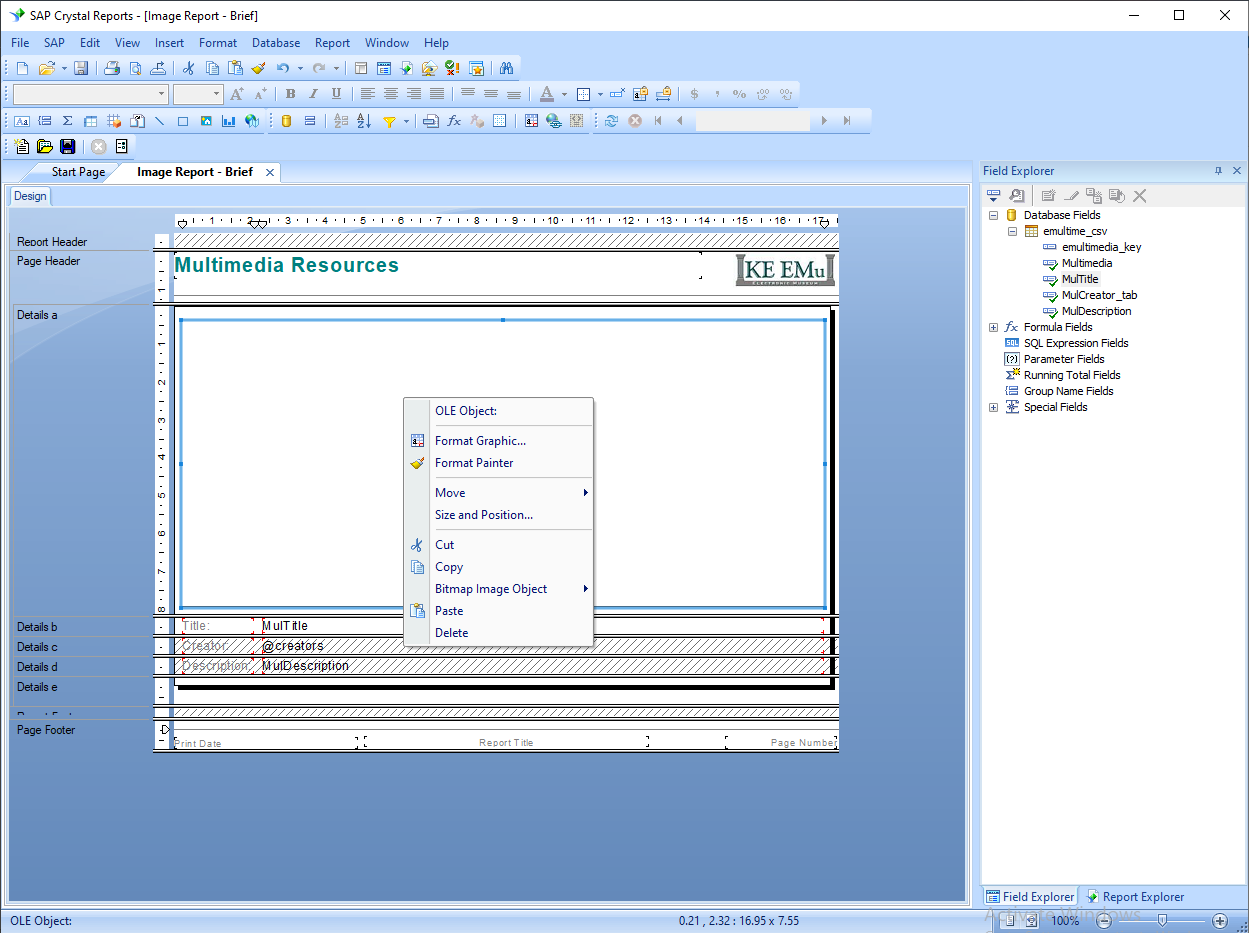
The Format Editor box displays:
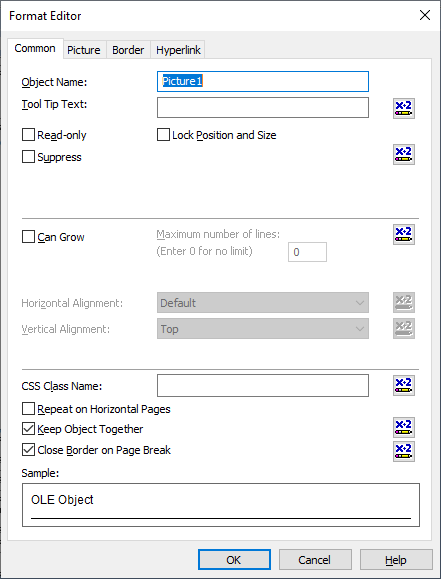
-
On the Picture tab, select the Formula
 button: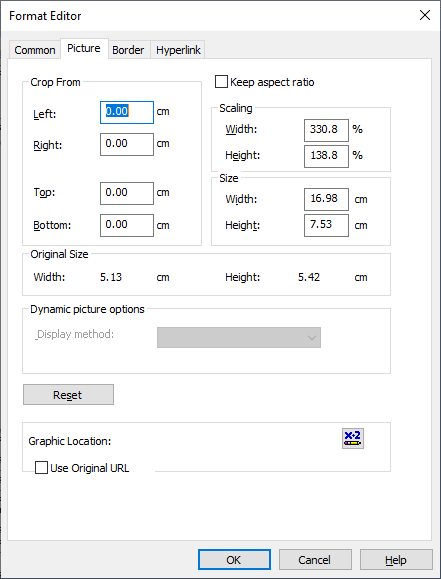
The Crystal Formula Editor will display:
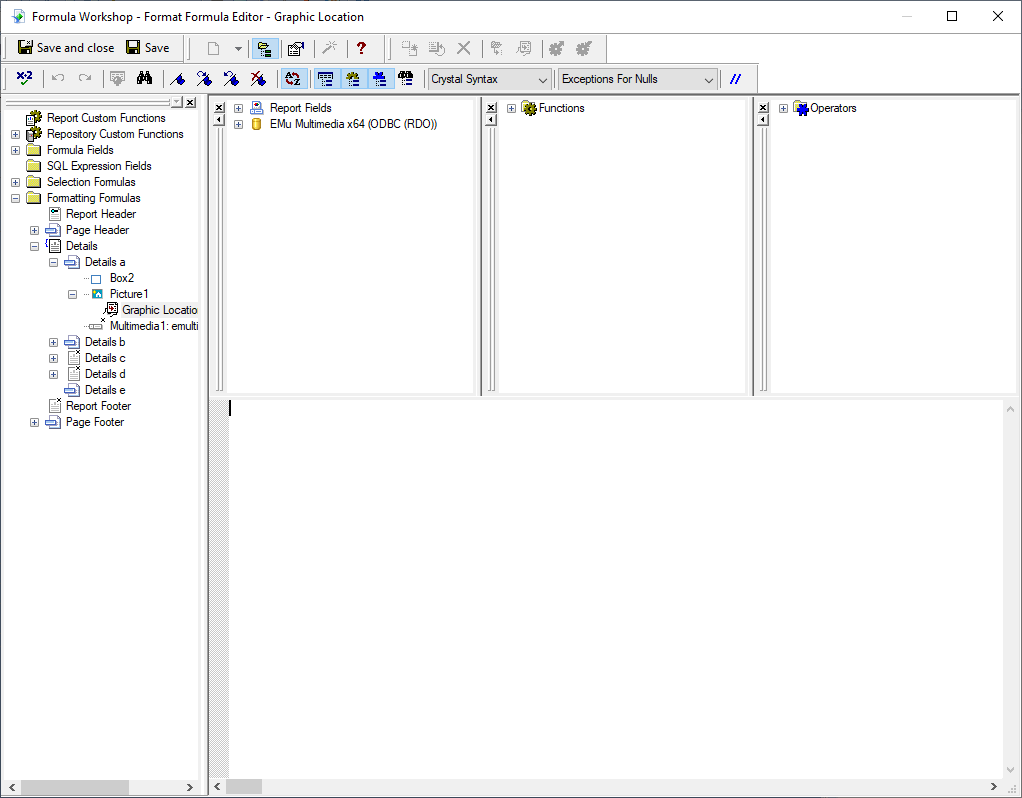
Tip: Details about adding formulas can be found here.
-
Expand the Functions tree (click the
+button), and then expand the COM and .NET UFLs category: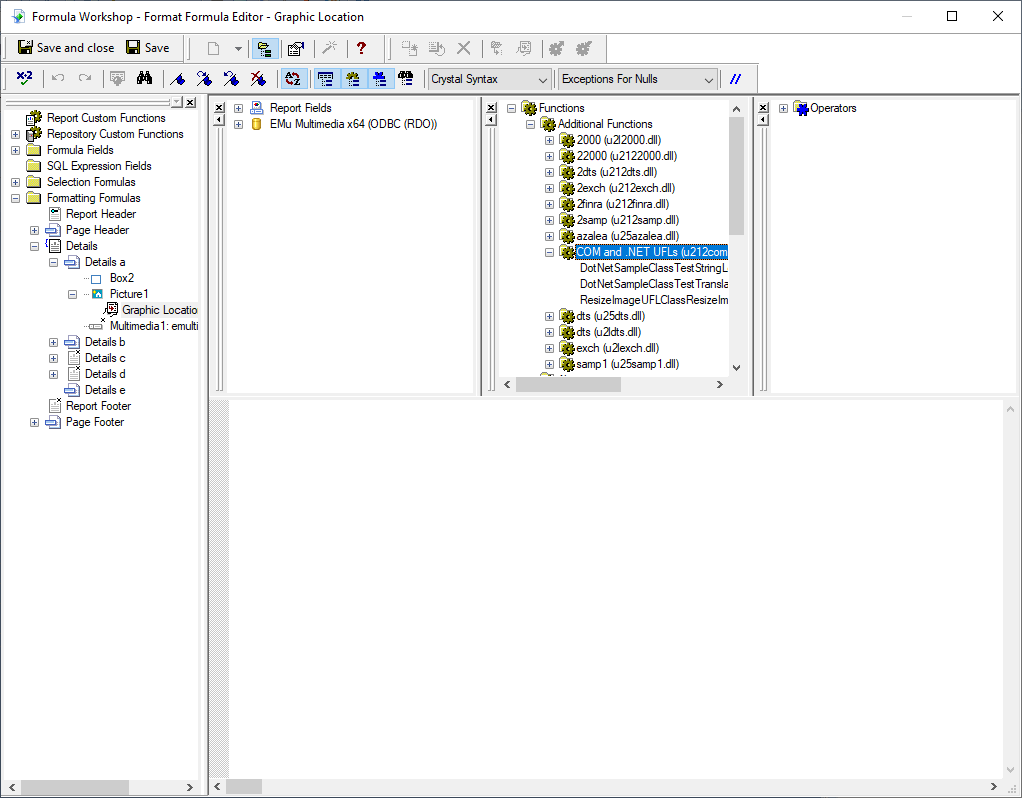
-
Double click ResizeImageUFlClassResizeImage to insert it into the Formula pane:
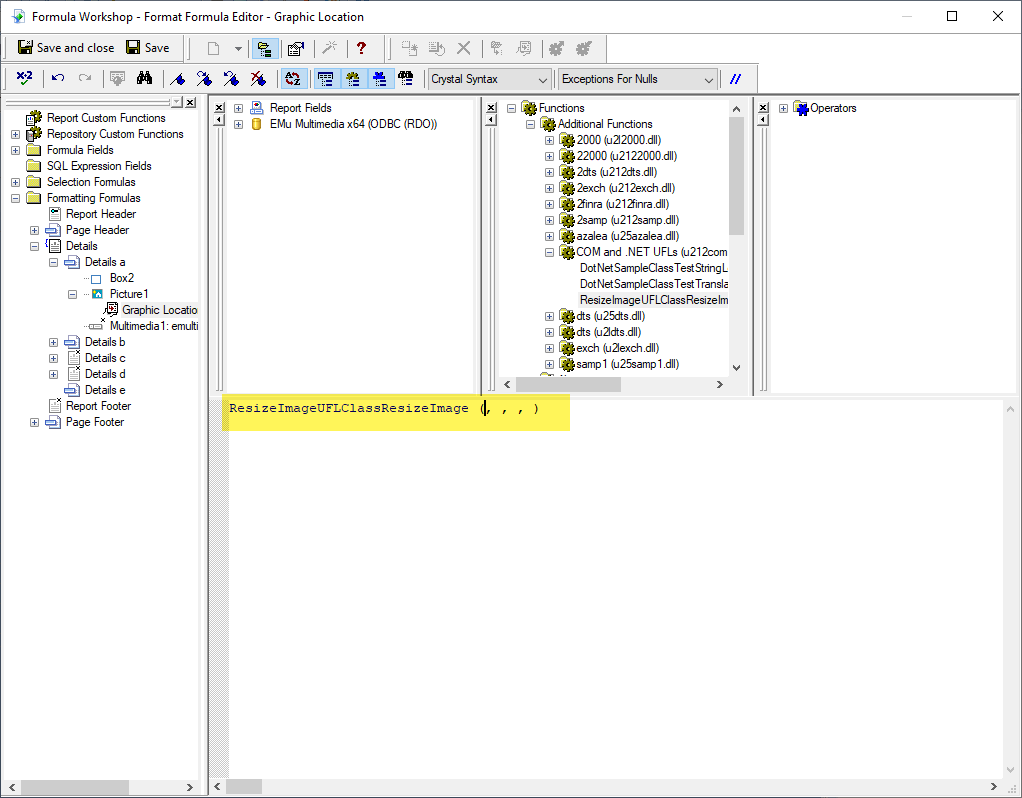
The ResizeImageUFlClassResizeImage function takes four parameters:
Parameters
Details
filename
This is obtained from the Multimedia field in the Report Fields pane. Double click Multimedia to insert it into the function parameters.
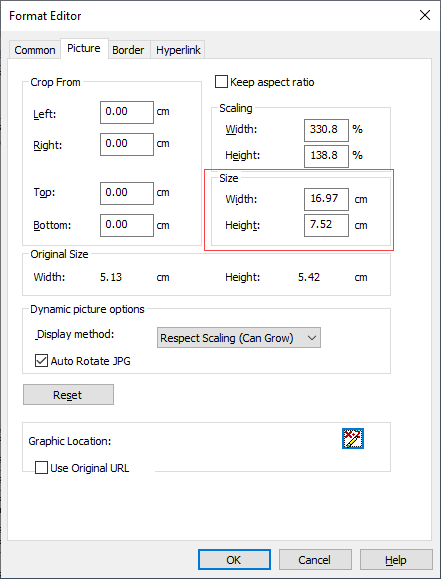
width
width and height are found on the Picture tab under the Size heading:
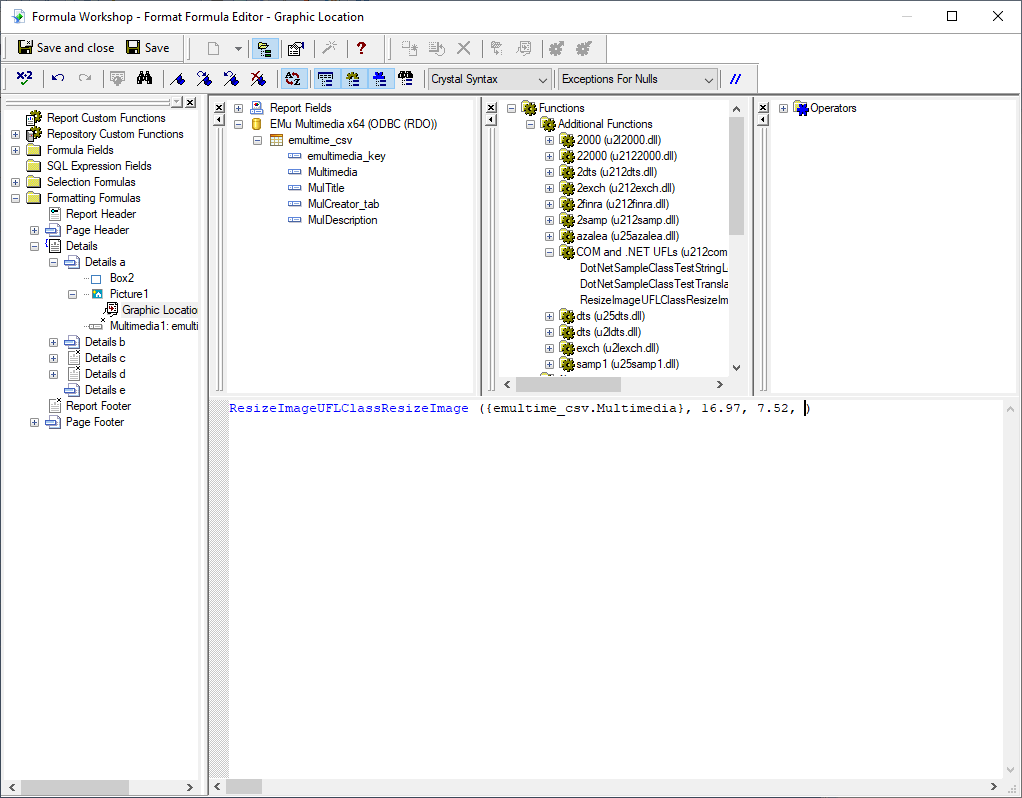
The EMu image is resized, with its aspect ratio maintained, centred in the space allocated for the OLE control.
Any remaining space in the OLE control is filled with the selected background colour.
height
background colour
Typically, background colour will be
WHITE(to match the paper colour on which it is printed). This parameter is a string and so must be enclosed within double quotes: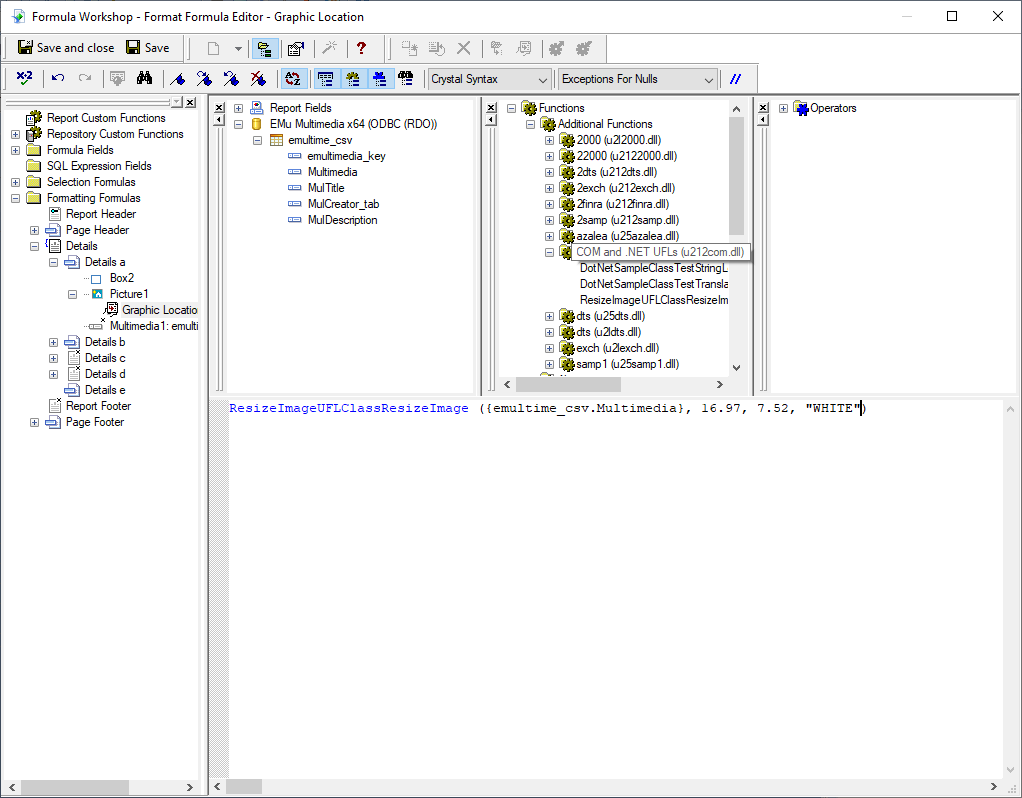
Other possible background colours are:
MAROONGREENOLIVENAVYPURPLETEALGREYSILVERREDLIMEYELLOWBLUEFUCHSIAAQUABLACK
-
Click Save and Close (top left corner).
-
- Save the report.
A message similar to the following will display:
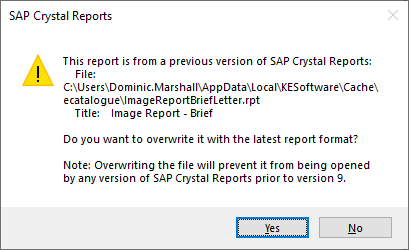
- Select Yes and close Crystal.
- Upload the updated report to EMu.